Instagram provides native tools for simple first responses and prepared FAQs. However, workflows triggered by comments or designed to carry on a multi-step conversation require a third-party automation tool.
Simply put:
- Use Instagram or Meta Business Suite when a static welcome, away, or FAQ response is enough.
- Use a third-party tool when the response should be triggered by a keyword, comment, Story interaction, campaign action, or semantic situation. A semantic situation occurs when someone’s message reveals a particular intent, such as an interest in purchasing your product.
We’ll first walk through the free Instagram native route, then explain how to create more complex automations through Sociable AI.
Define the specific automation you're looking for
An Instagram auto reply can describe several different combinations of triggers and responses. To figure out which automation provider to use, you first need to define exactly what you want to automate.
Start by asking what should trigger the automation and what kind of response should be sent. For example, you may want one of the following workflows.
- A follower sends you a DM for the first time and receives a templated response.
- A follower leaves a comment containing a particular keyword and receives a private DM.
- A follower sends an initial DM and the automation continues a multi-message conversation.
The first example only requires a fixed first response. Instagram’s native options may be enough in that situation, especially if you only need an instant reply, away message, or four prepared FAQs.
The other examples require more control over the trigger or what happens after the first message. In those situations, you’ll need a third-party automation tool.
2. Set up native Instagram auto replies
Meta offers several native reply mechanisms, but each one handles a different type of conversation. Prepared FAQs let someone choose from a small set of questions. Meta Business Suite can send fixed responses, while Creator AI can generate replies for an eligible audience.
Set up prepared FAQs
According to Instagram’s Help Center, prepared FAQs appear when someone begins a chat with your Instagram account. Each question is paired with a response you have written in advance, and Instagram allows you to add up to four.
To configure them, open the FAQ controls in your Instagram messaging settings. Add the question you want someone to see, write the corresponding response, and save it. You can repeat this process until you have added four questions.
This route works best when your audience regularly asks the same basic questions. For example, you could prepare responses about opening hours, shipping availability, or how to find a particular product. Someone beginning a conversation can select the relevant question and immediately receive the answer.
Prepared FAQs do not carry on a conversation after sending the saved response. If you need to react to what the person says next, you’ll need a more advanced workflow.
Set up fixed replies in Meta Business Suite
Meta Business Suite includes Instant Reply, Away Message, and Custom Keywords automations. The current CreatorFlow walkthrough gives the following setup path.
- Open Meta Business Suite.
- Select Inbox.
- Open Automations.
- Choose Instant Reply, Away Message, or Custom Keywords.
- Select Instagram as the channel.
- Write your message and save the automation.
An instant reply works as the first response to a new message. An away message is more appropriate when you want to set expectations while nobody is available. Custom Keywords let you connect particular words with fixed replies.
Omnichat describes the native setup by saying, “Meta Business Suite lets you set up Instagram auto-replies in under 5 minutes and supports keyword triggers for faster DM automation.”
There are still practical limits to the keyword route. CreatorFlow reports that “Meta Business Suite holds keyword replies for 15 minutes, caps you at five case-sensitive keywords, and runs comment automation on desktop only.”
Because keywords are case-sensitive and limited, this setup is most useful for a small number of predictable requests. It becomes less suitable when followers might express the same intent using many different words.
Set up Creator AI auto replies
Creator AI auto replies are separate from prepared FAQs and fixed Business Suite responses. The feature is being released gradually on mobile for professional accounts that already have a Creator AI.
Open the auto-reply controls associated with your Creator AI and select the audience that should receive generated responses. Once enabled, eligible recipients will see that the response was generated by AI. You can review the complete process through Meta’s instructions for how to turn on AI auto replies.
Creator AI pauses its automated replies while the account owner is responding. This prevents the AI and account owner from trying to handle the same conversation at the same time.
Unlike a prepared FAQ, the response is generated rather than copied from a fixed template. Meta’s information about AI auto replies warns that generated responses may be inaccurate or inappropriate. You should therefore review how Creator AI responds before using it with a wider audience.
3. When to use a third party tool
You should move to a third-party tool when your conversation requires more logic around the trigger, the response, or both.
When you need a different trigger
Instagram’s basic first-response tools begin when someone starts an ordinary DM conversation. Your campaign may need to begin somewhere else.
For example, you might ask followers to comment with a keyword to receive a resource through DM. You may instead want a Story interaction, mention, or campaign action to begin the workflow. These triggers connect public or campaign engagement with a private conversation.
This is especially useful for comment-to-DM automation. A follower can express interest under your post, and the automation can move that person into a direct message conversation where you can share more information.
When you need a defined conversation
Some campaigns need more than one fixed response, but every possible path can still be planned in advance. In this case, you can use a logical tree with deterministic answers.
For example, the first message might deliver a resource and then ask whether the person wants additional information. The next response depends on the option selected. Everyone making the same selection follows the same predefined branch.
This approach works well when the questions and acceptable answers are predictable. However, the workflow may struggle when someone replies in their own words or asks something outside the available branches.
When you need a dynamic conversation
A dynamic conversation adapts to what the person actually says while continuing towards a defined goal. That goal may be sharing the correct website link, collecting contact information, or helping someone decide what to do next.
Instead of requiring the person to select a fixed button, the automation interprets the response and continues the conversation accordingly. The direction is still defined, but the exact wording and sequence can change from one conversation to another.
This is where an AI-led sequence differs from a fixed flow. While fixed flows provide consistency for predictable tasks, AI-led handling can be more flexible when the language or conversation path varies.
4. Set up Instagram DM automation with Sociable AI
Automating your Instagram DMs with Sociable AI is super straightforward. Once you have completed your AI agent setup and integration through onboarding, navigate to the Sequences page as seen below:
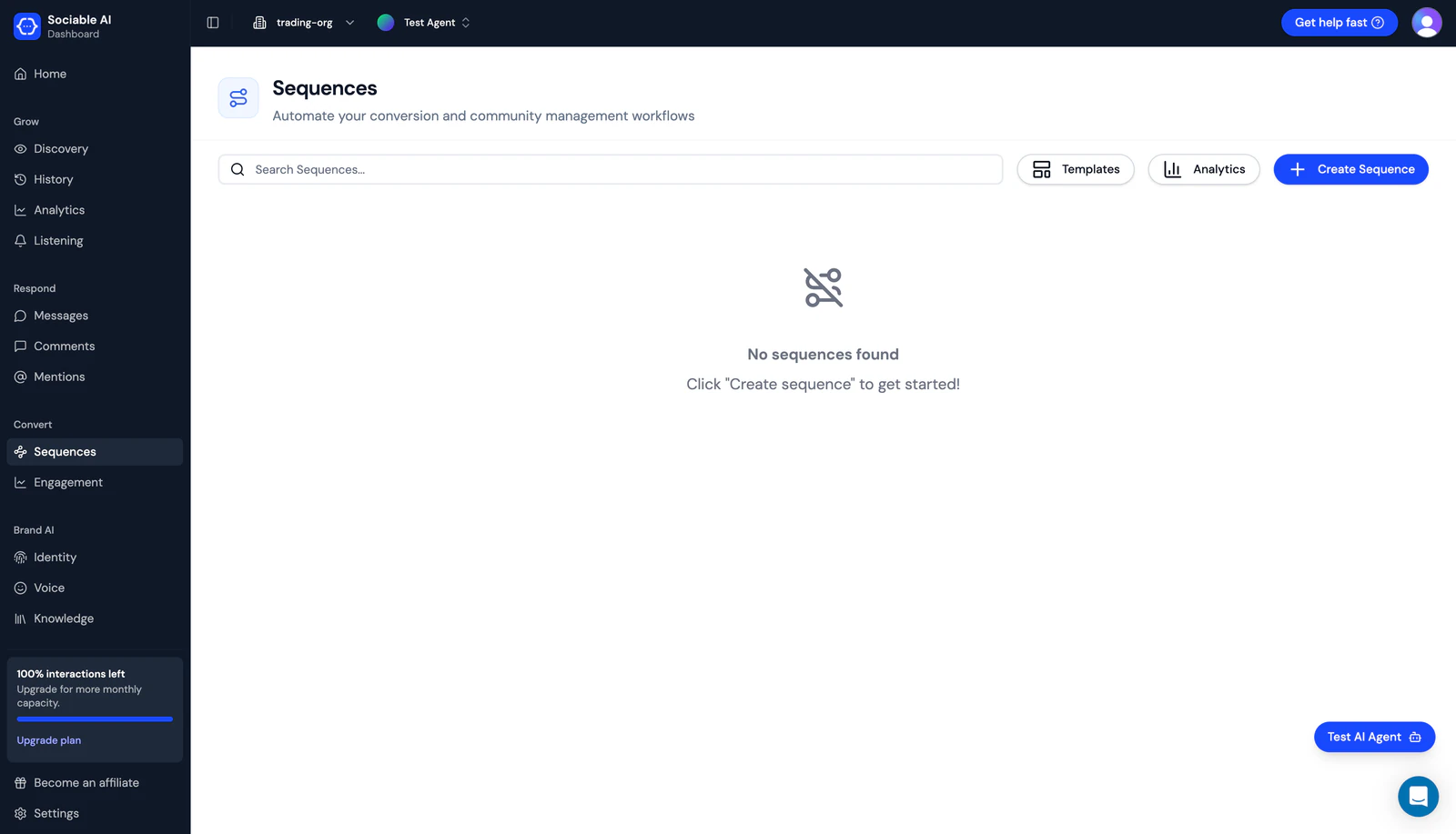
Sociable AI's Sequences feature allows you to instruct your AI to execute a specific conversation flow with followers upon triggering. Unlike traditional Instagram chatbots, your agent doesn't follow a defined logic tree when conversing with a follower. Instead, it uses AI to intelligently and naturally guide the conversation toward your specified goal. If this sounds abstract, no worries, it will all make sense once we try it!
To make it easier for us to get started, we'll take advantage of the Templates in the top right. Click the Templates button and you'll be met with the following screen. Select Instagram for the platform of choice, and create a new sequence using the Sales template.
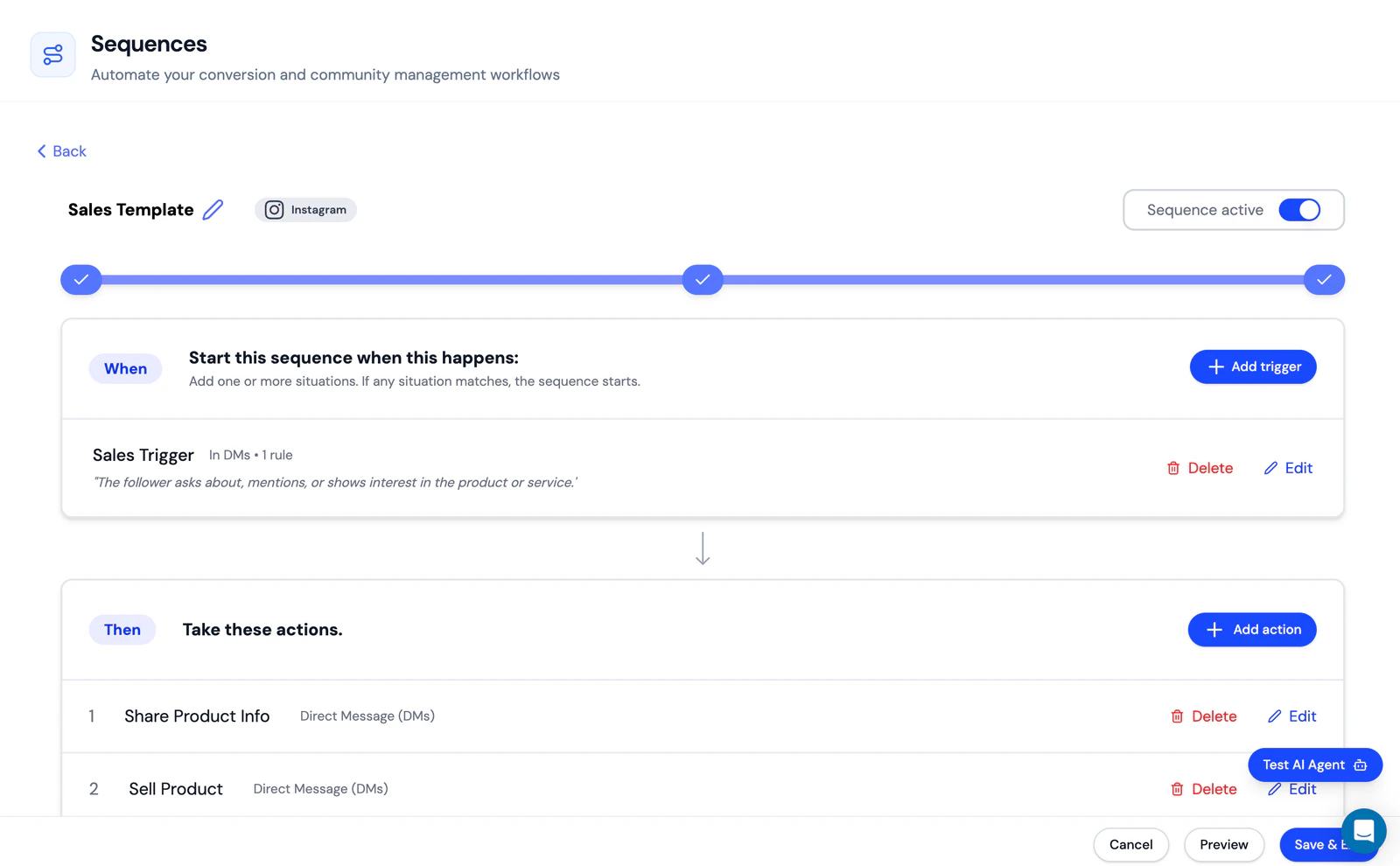
The Sequences editor is made up of four main blocks: When, Then, Follow Up, and Until. The When block is where you can determine what exact scenario should trigger this automation. You can trigger based on message type (DM, comment), whether a specific keyword is present in the message, or even by a more abstract scenario. For example, in this template the trigger is when a DM is received where "The follower asks about, mentions, or shows interest in the product or service."
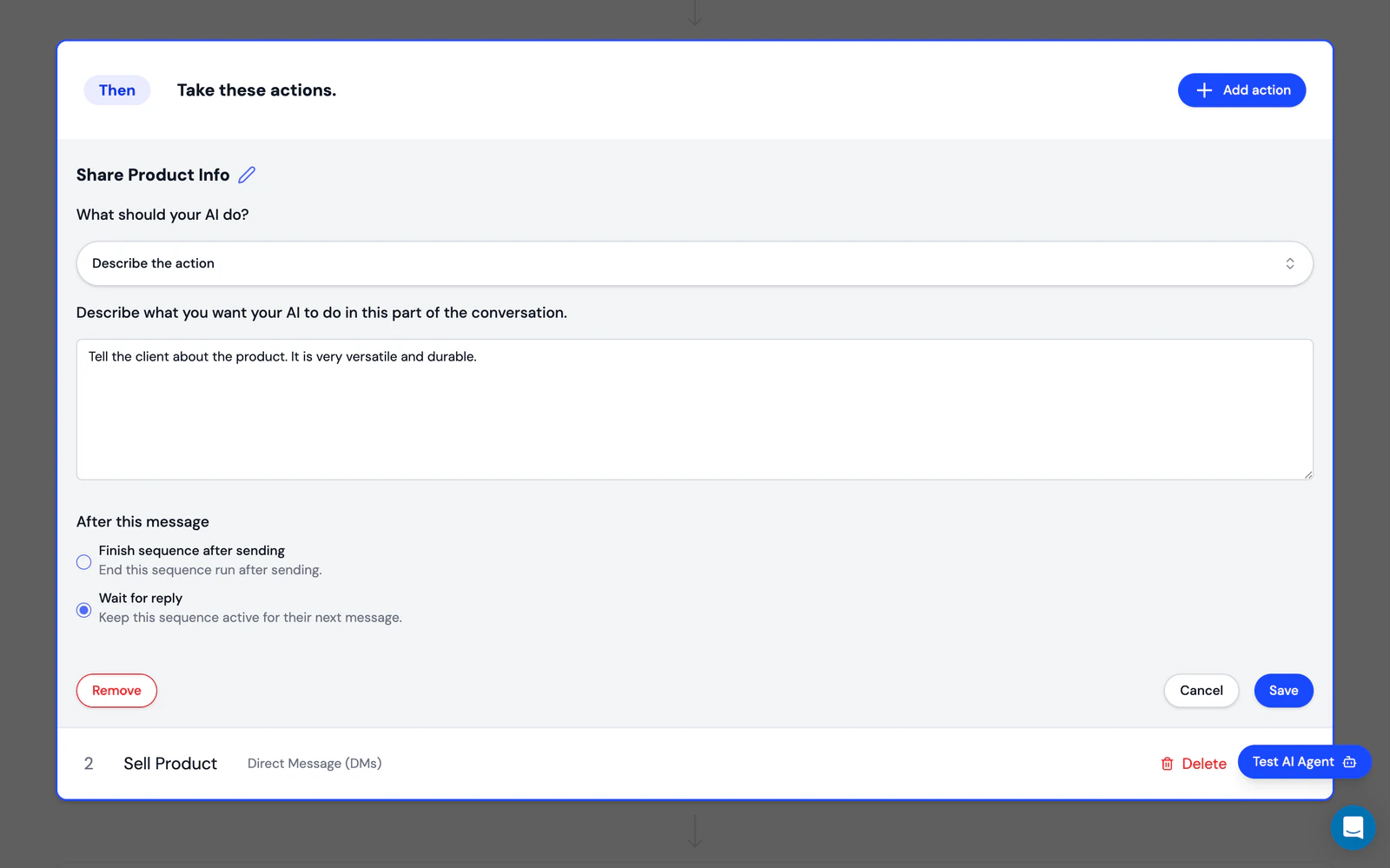
The Then block is where you define the actual steps the automation should take. Shown above is the editor for the first step in the template, expanded by clicking 'Edit' next to step 1.
There are two ways to direct your agent on what to do, selectable in the first dropdown. The first is to 'Describe the action', which is to prompt the agent in natural language. The second option is 'Say exactly this'. If you select this option, the agent will send the exact message you type into the text input and immediately move on to the next action.
In this case, 'Describe the action' is selected and the instructions are 'Tell the client about the product. It is very versatile and durable.'
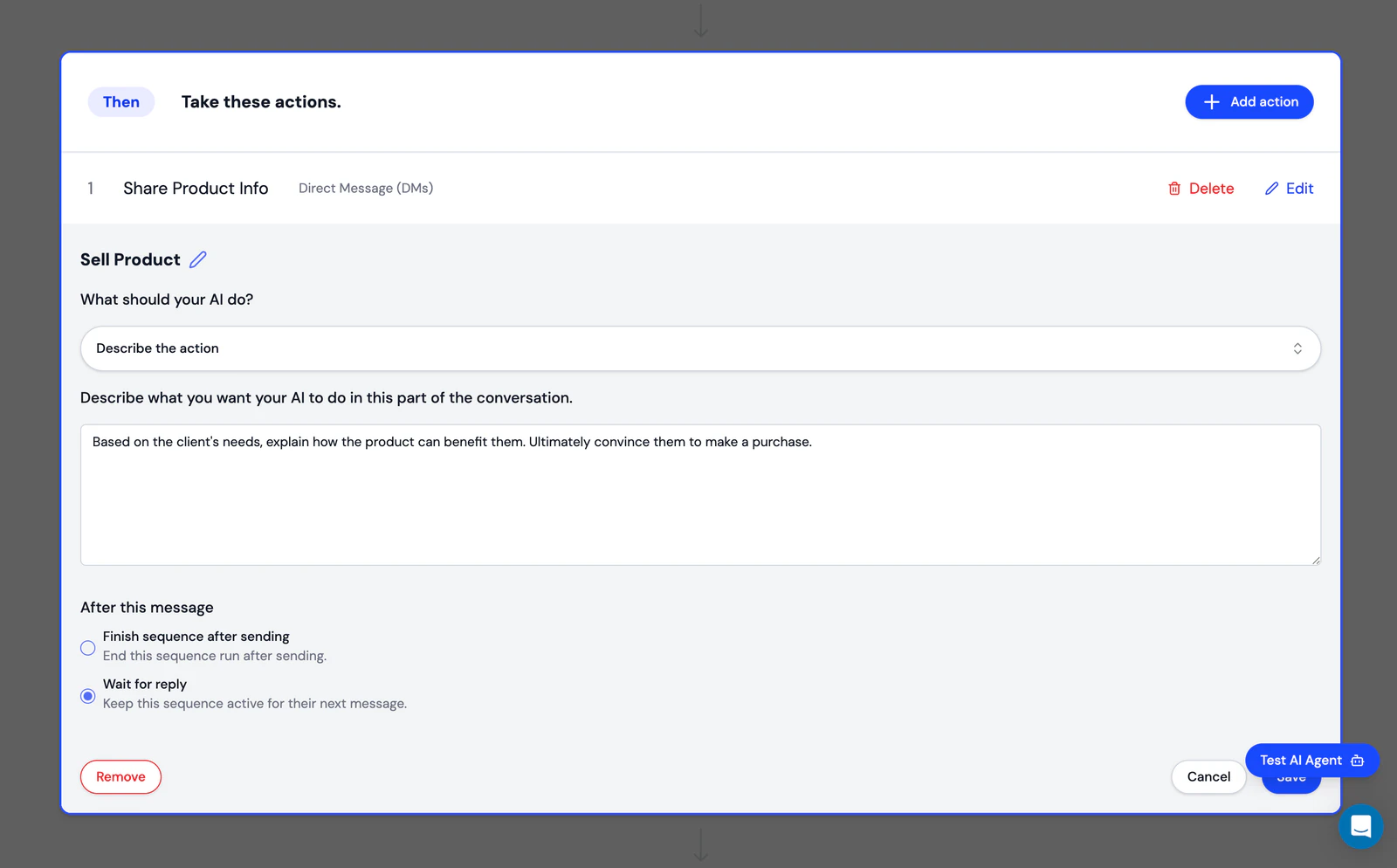
The next action the agent is directed to take is 'Based on the client's needs, explain how the product can benefit them. Ultimately convince them to make a purchase.'
What's great about sequences is that your agent will take as long as necessary for each action, and will intelligently decide when to move on to the next step, making the conversation a much more natural experience for the follower.
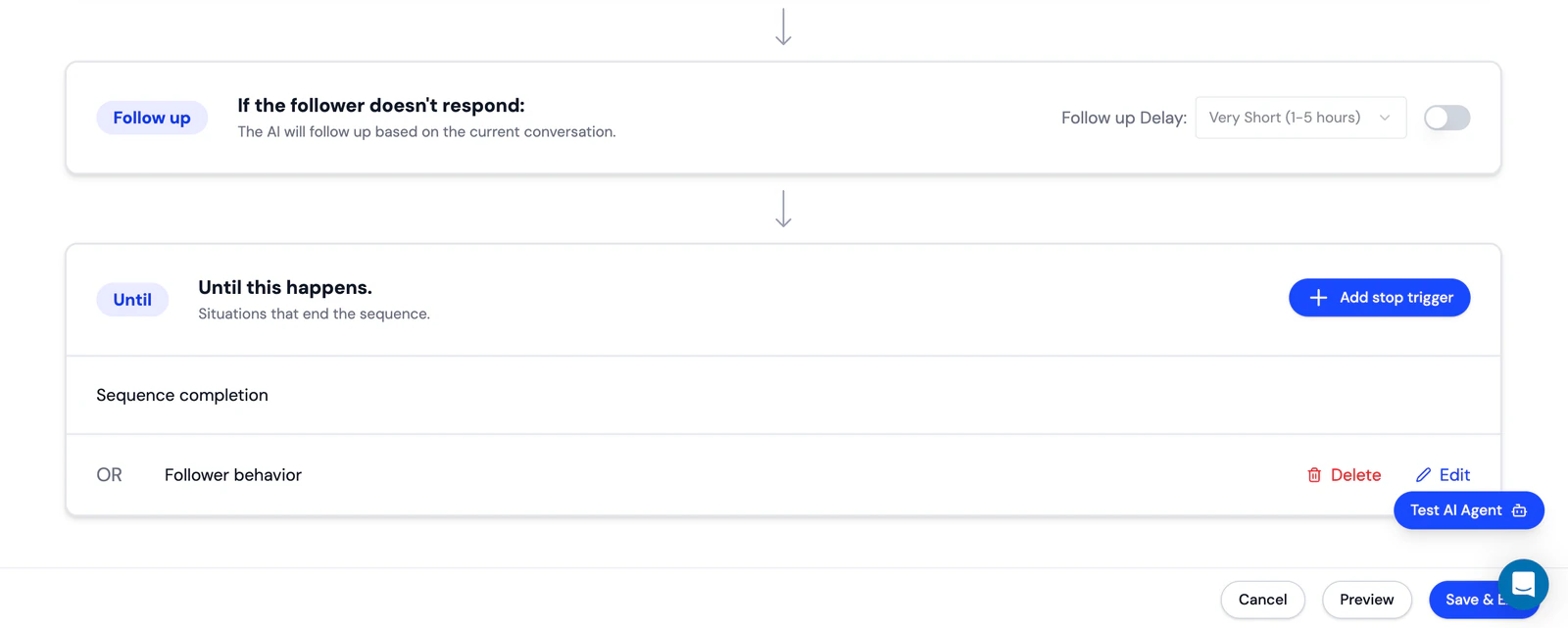
The Follow Up block defines the follow-up delay before your agent responds. By default there is no follow-up delay, but you can configure a randomized delay of up to 24 hours to make response times more natural.
The final Until block allows you to define situations that should end the sequence. The template provides a great example below.
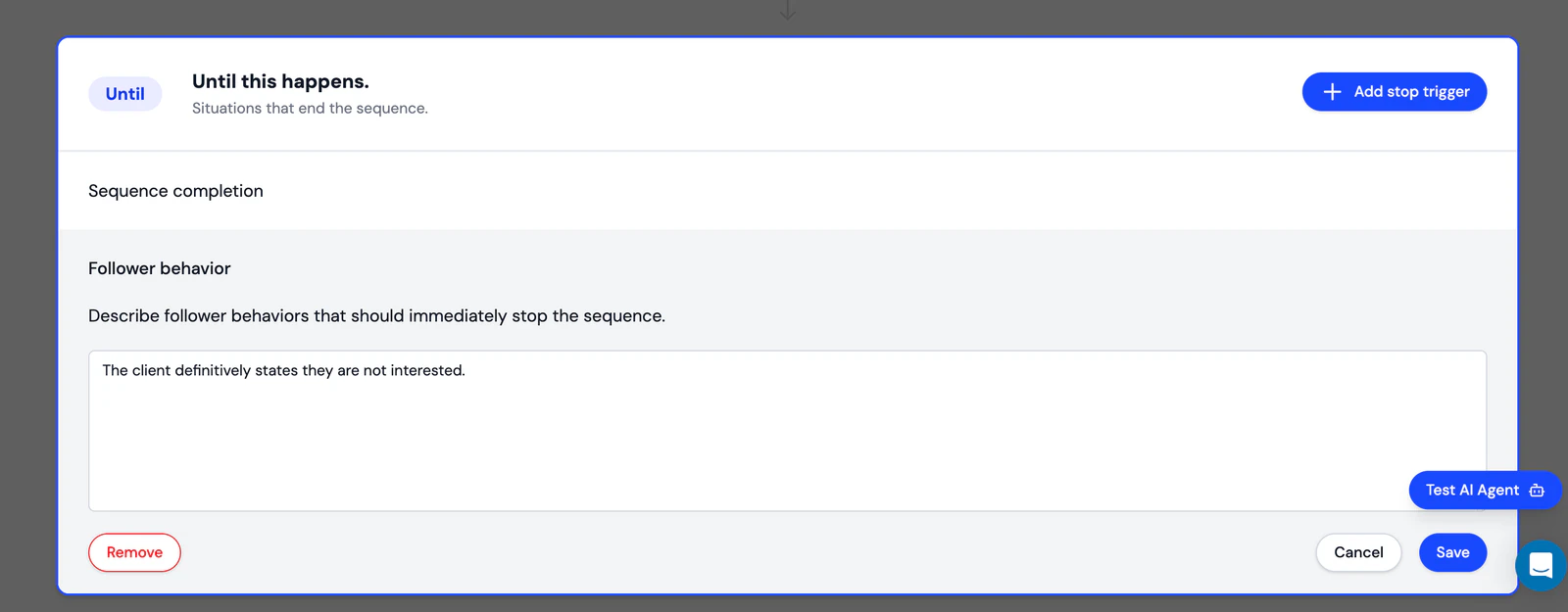
Now that we've walked through the functionality of each block, go through and make your own edits based on the conversation you want to automate. You can change the trigger to a comment to create a comment-to-DM automation, add as many triggers as you'd like, add more actions, and set a follow-up delay.
After you've customized the template, select the Test AI Agent button at the bottom right of your screen. You can use this interface to test your sequence until it's exactly as you want it. Here's a basic example of a sequence we customized to promote Sociable AI.
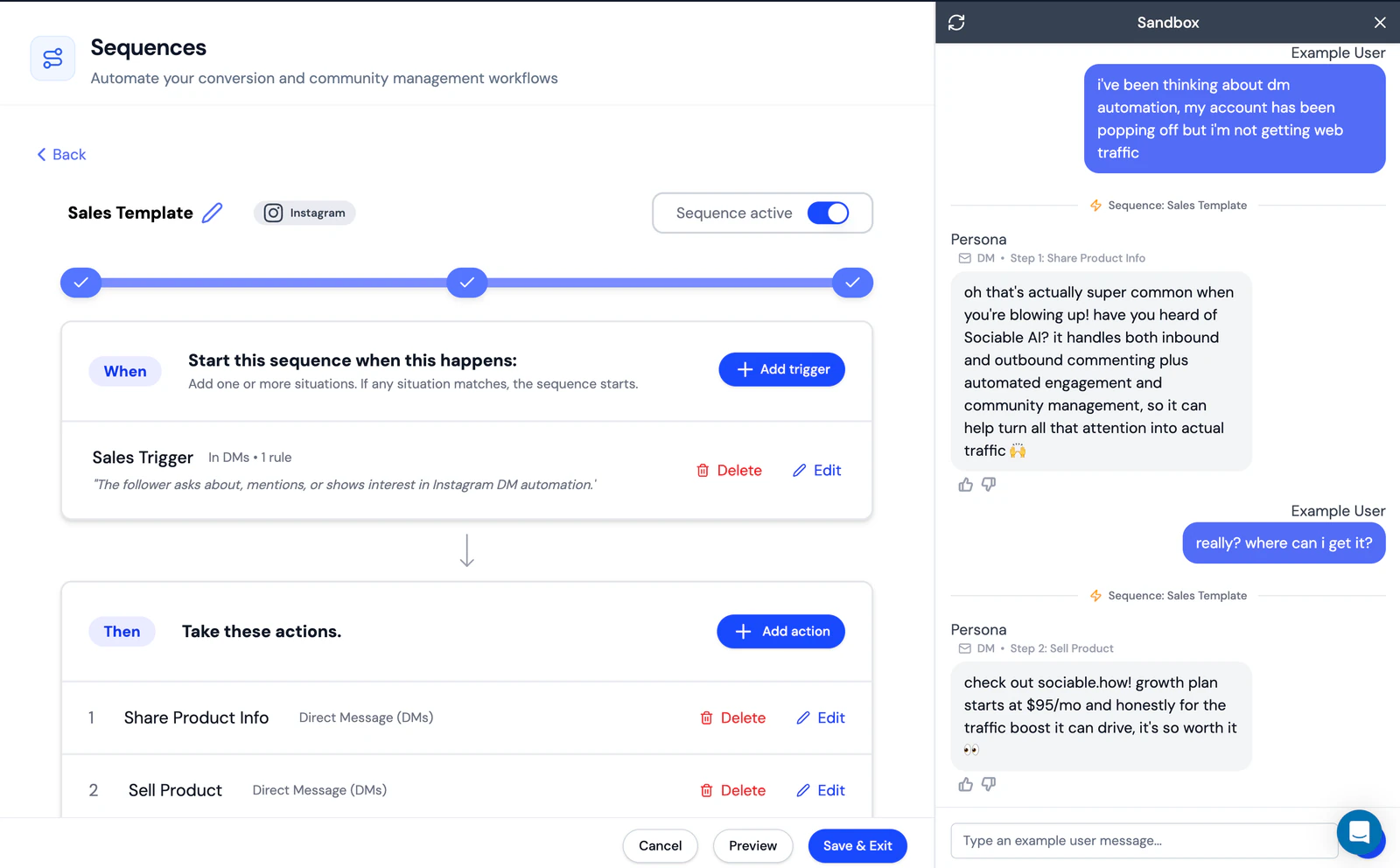
In the sandbox you can see exactly when your sequence activates and the exact step your agent is on with each message. Once you're happy with your sequence, just make sure it's switched on and you're good to go.
5. Choosing the best option for you
The correct setup depends on the conversation you need to automate.
Use Instagram’s native options when you only need a fixed first response, away message, or small set of prepared FAQs. These options are free and keep the setup relatively simple.
Use Sociable AI when a comment or campaign action should trigger a DM, or when the exchange needs to adapt to what the person says next. Sociable AI supports comment-to-DM automation and AI-led sequences that conduct responsive conversations towards the goals you define.
If your Instagram workflow needs to go beyond a fixed auto reply, try Sociable AI to build comment-to-DM automation and AI-led DM sequences around the conversations your audience is already starting.
6. Instagram auto-reply FAQ
Can you set up Instagram auto replies on a personal account?
There is not one universal answer because each auto-reply feature has separate eligibility requirements. Creator AI auto replies are specifically intended for professional accounts that already have a Creator AI. Prepared FAQs depend on whether the FAQ control is available on your Instagram account, while the Business Suite route requires your Instagram account to be available as a channel in its inbox.
Third-party tools also have their own connection requirements based on the Meta access they use. Check account eligibility before building a workflow around a particular provider.
How do you turn off auto replies on Instagram?
For prepared FAQs, return to the same Instagram FAQ controls and remove or disable the questions. For Meta Business Suite, open Inbox, select Automations, choose the active Instant Reply, Away Message, or Custom Keywords workflow, and turn it off.
Creator AI replies can be disabled through the Creator AI auto-reply controls on mobile. You can also change the eligible audience if you do not want to disable the feature completely.
Third-party automations must be disabled inside the connected tool. Disconnecting the account may also stop them, but turning off the individual workflow is usually more appropriate when you want to preserve the rest of your setup.
Can Instagram automatically reply to comments and Story replies?
Ordinary inbound DMs, public comments, comment-to-DM triggers, and Story interactions are separate types of automation.
An instant reply handles a new inbound DM. A public comment reply responds underneath the original post, while comment-to-DM automation uses the comment as a trigger for a private message. A Story interaction can also function as a separate trigger in a third-party workflow.
The correct setup therefore depends on where the interaction begins and whether you want the response to remain public or move into a private conversation.
How many automated Instagram DMs can you send?
There is no single defensible public number that applies to every Instagram DM automation setup. Meta messaging rules and API-call accounting affect what can be sent, while the automation provider may impose its own monthly or plan-based limits.
You should check both sets of restrictions for the specific tool and workflow you choose. Claims that Instagram universally allows 200 DMs per hour should not be treated as an official Meta limit.
Are Instagram DM auto replies allowed?
Instagram’s native features and third-party tools using Meta’s approved API are legitimate ways to automate messages. However, compliance still depends on factors such as consent, message type, timing, and whether the activity could be considered spam.
Use auto replies to continue conversations that people have intentionally started. Avoid sending repetitive or irrelevant messages simply because a trigger makes it technically possible.